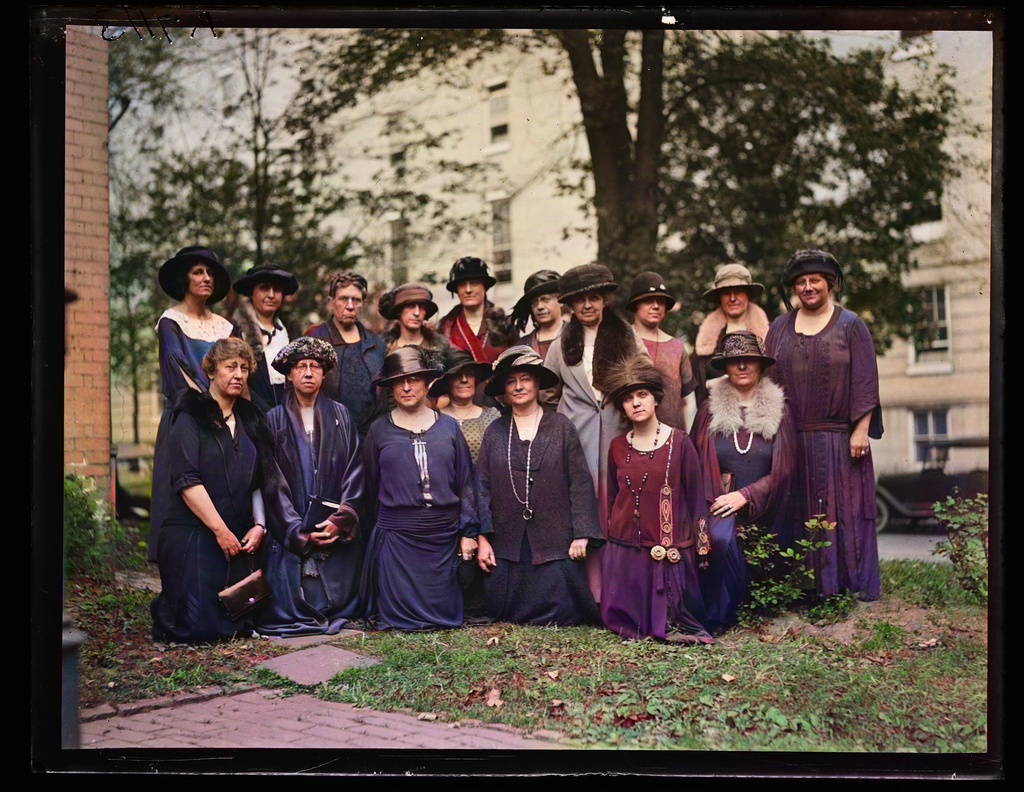
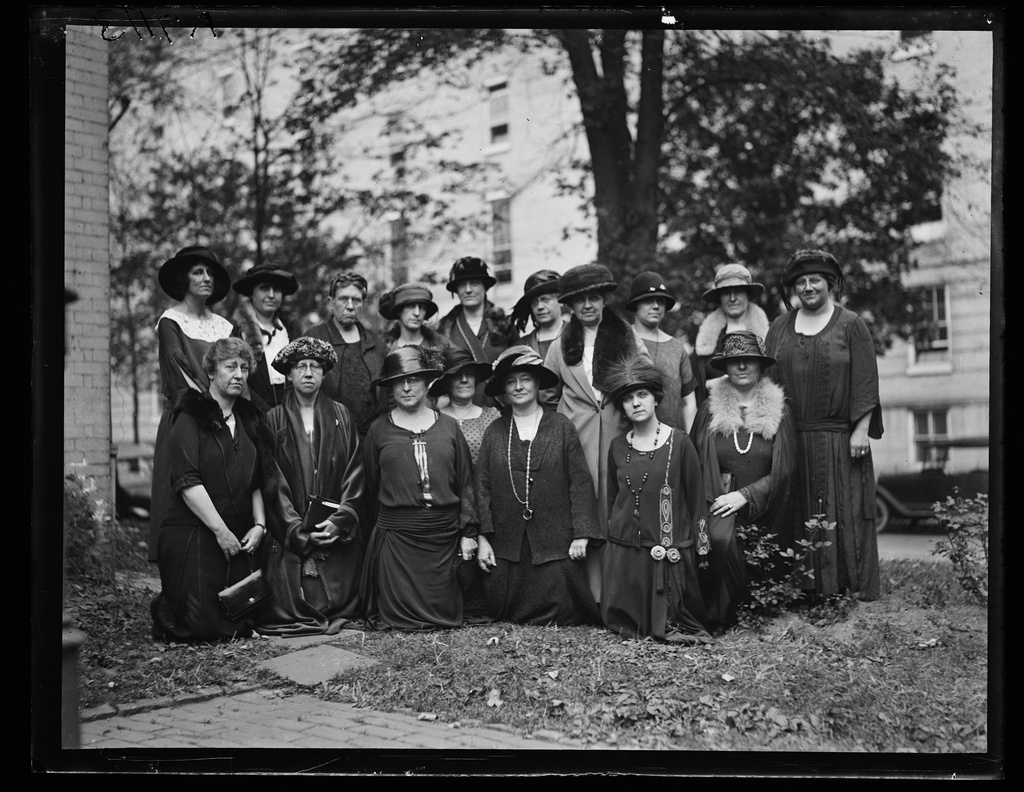
Colorize PhotoAI colorizer to recolor black and white photos
Put color back into a black and white photo of someone you love. Every shadow and bit of grain stays.
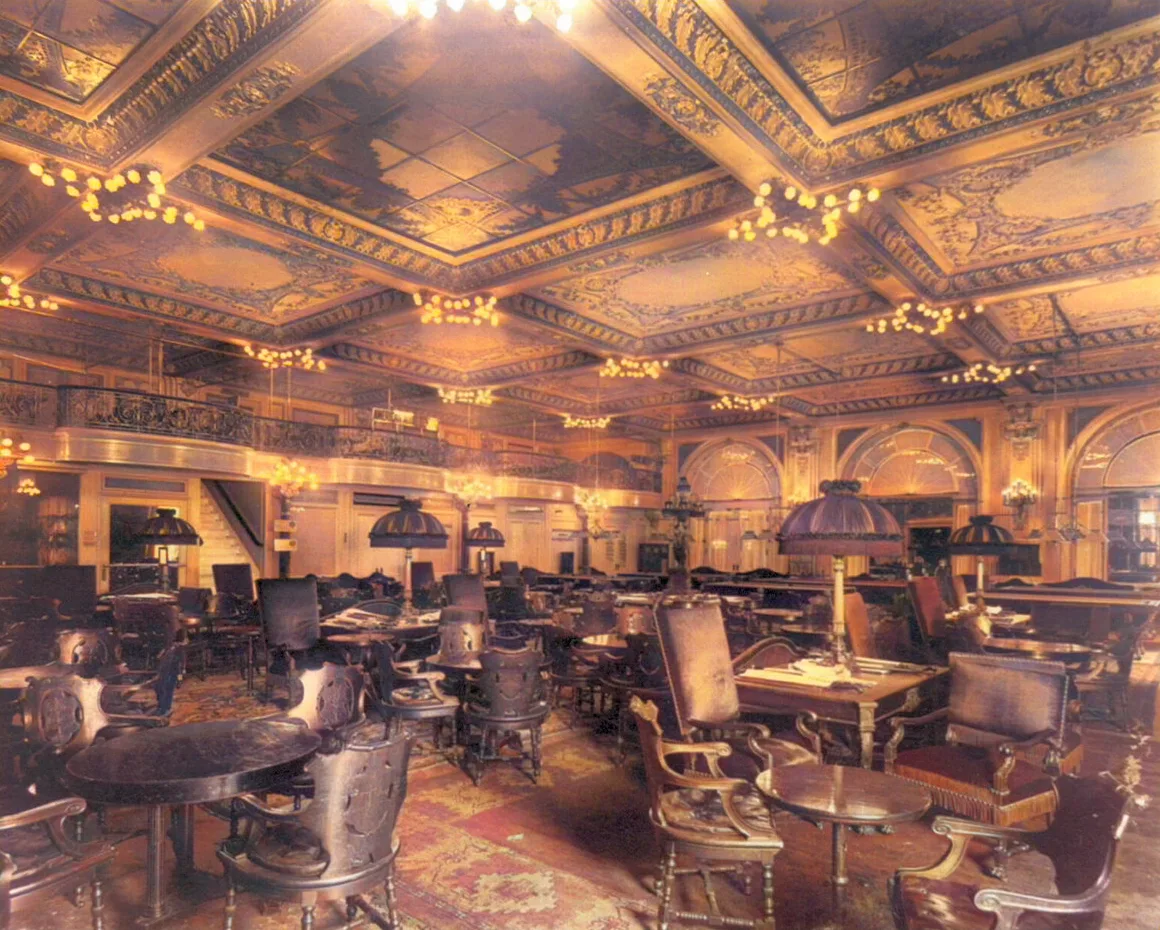
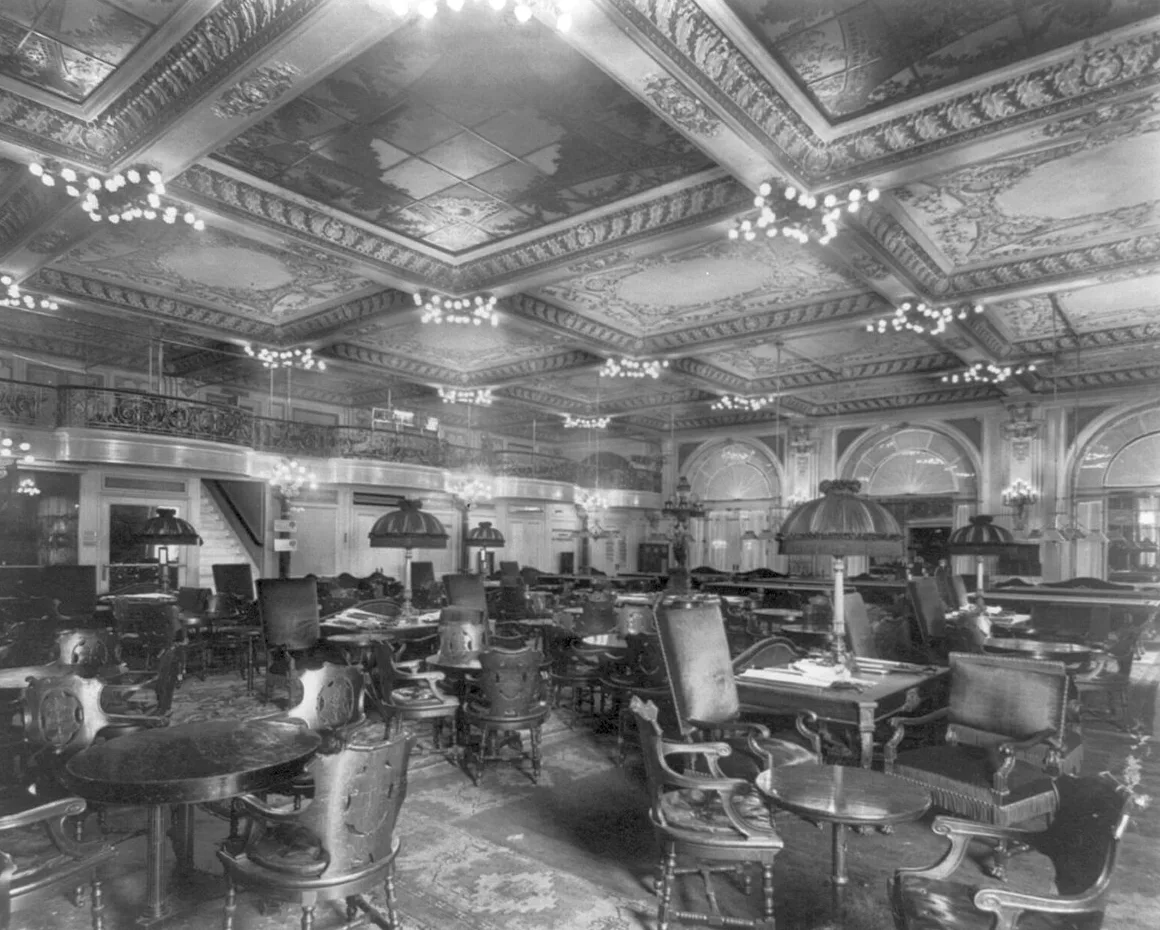
Black and white to colorDrag the line. Same photo, before and after.
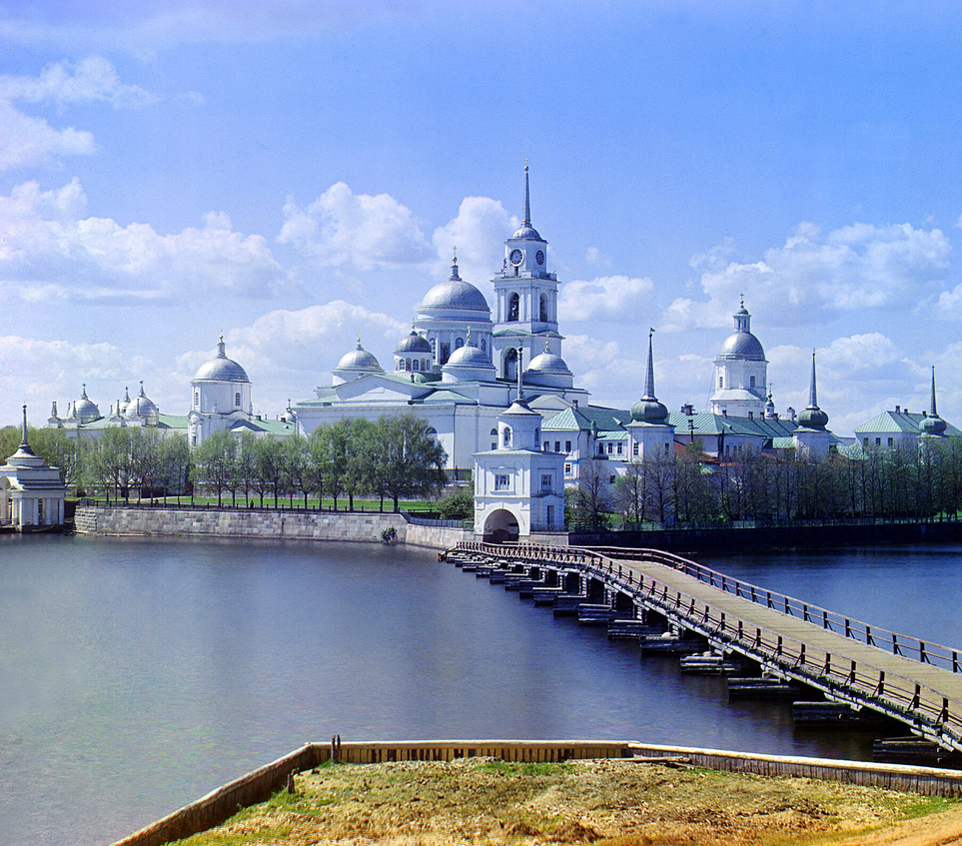
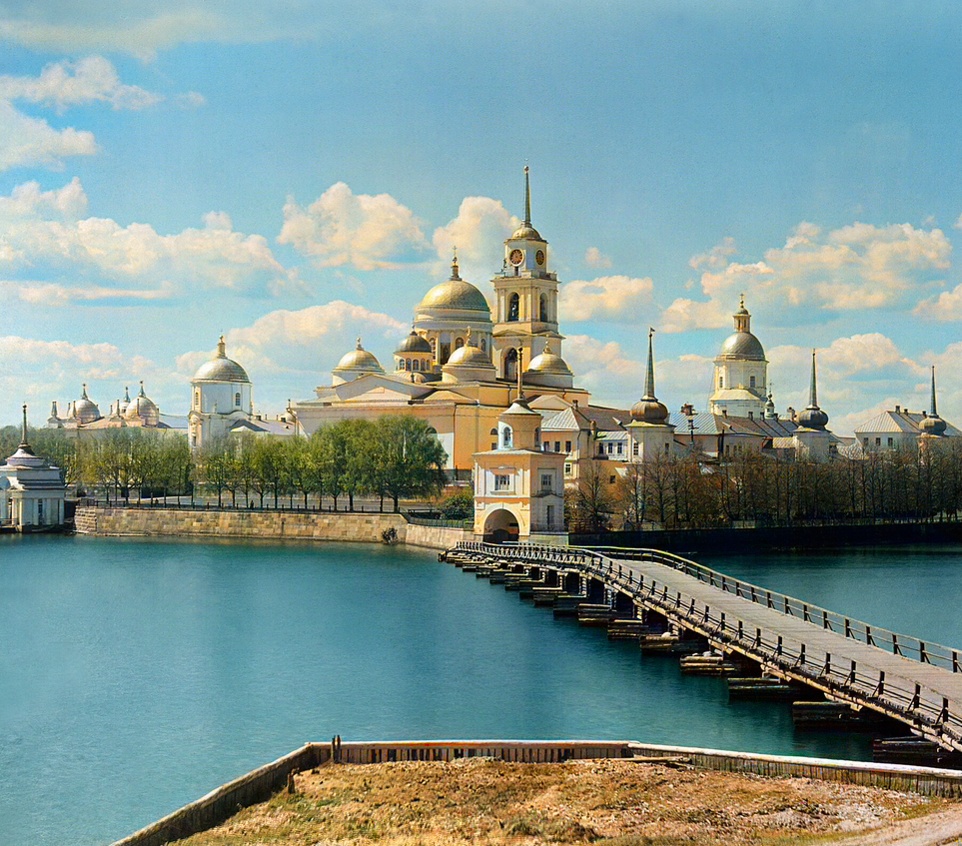
The colors are a plausible guess, not a record. See a dome whose real color we know
Why AI colors are a guess
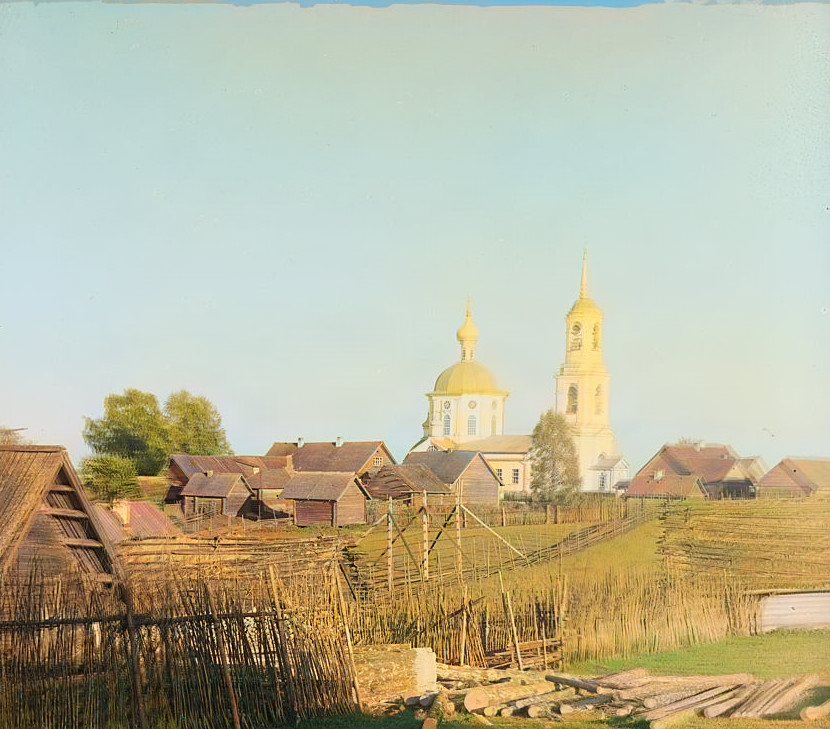
A 1910 color plate by Prokudin-Gorskii, turned to gray and run through three models: two painted the dome gold. The plate shows pale silver-blue.
Skin, sky, water and grass are safe bets. Gray still tells the model a lot about them, so the color usually lands close.
A dress, a car or a painted door is a guess. Gray keeps the light, not the paint or dye, so a red scarf and a green one can end up the same gray.
The color is plausible, not a record. If you know the real color, type it in.
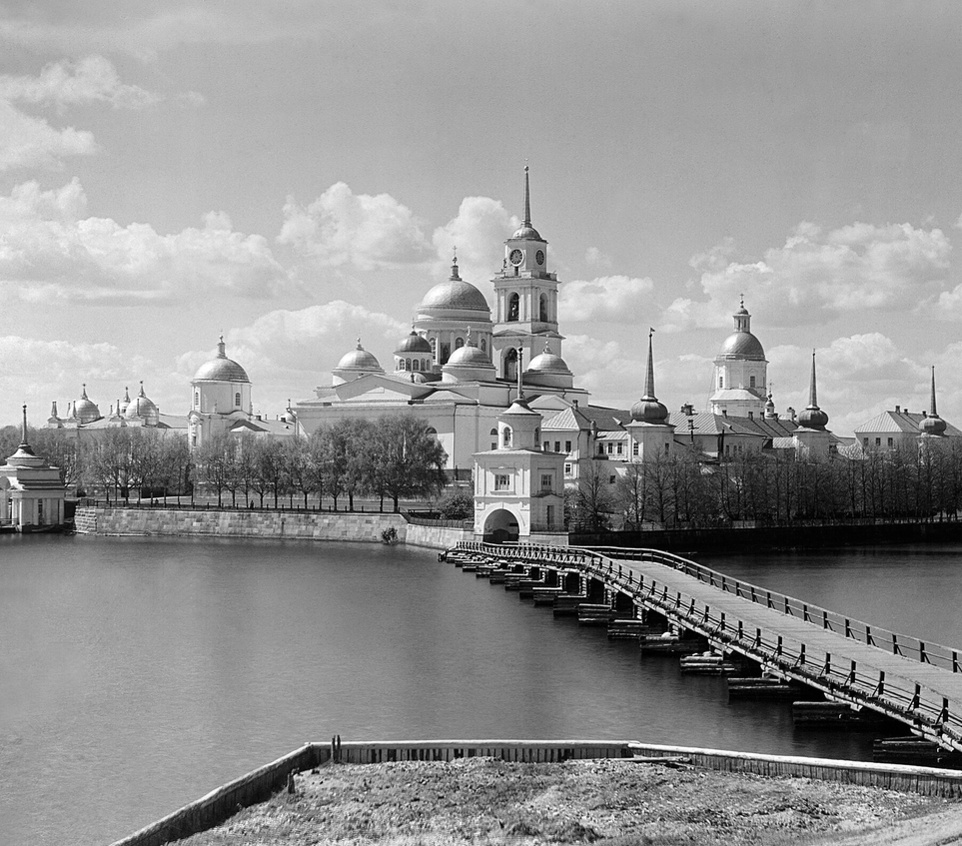
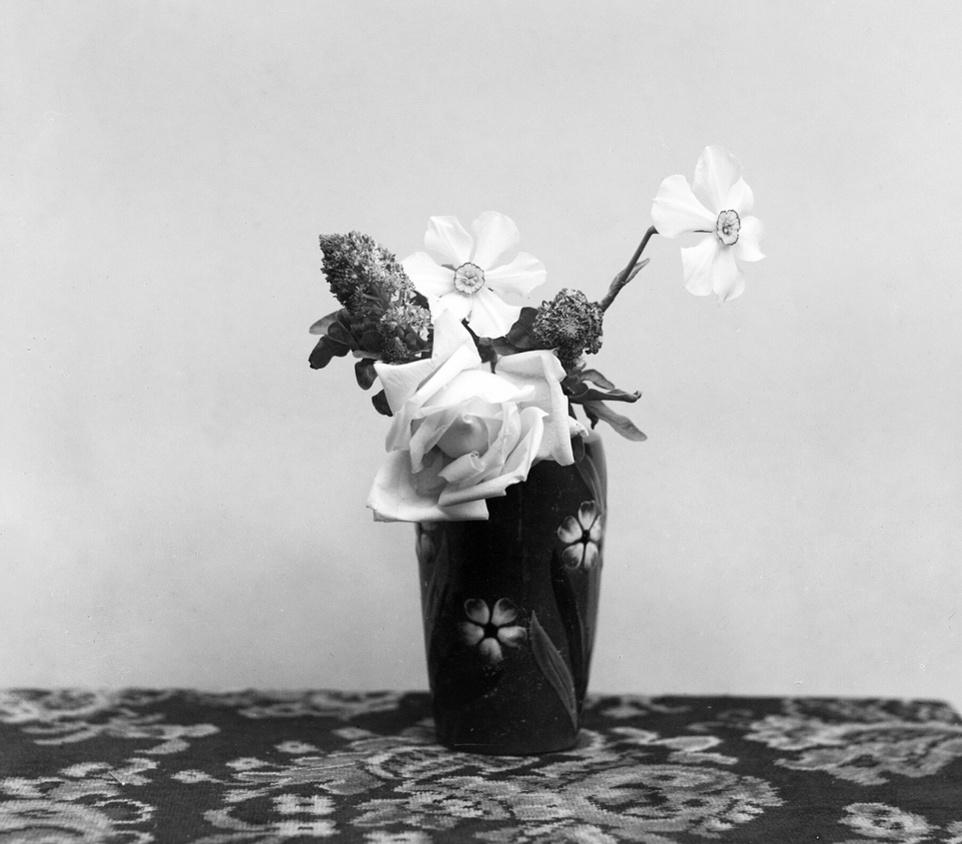
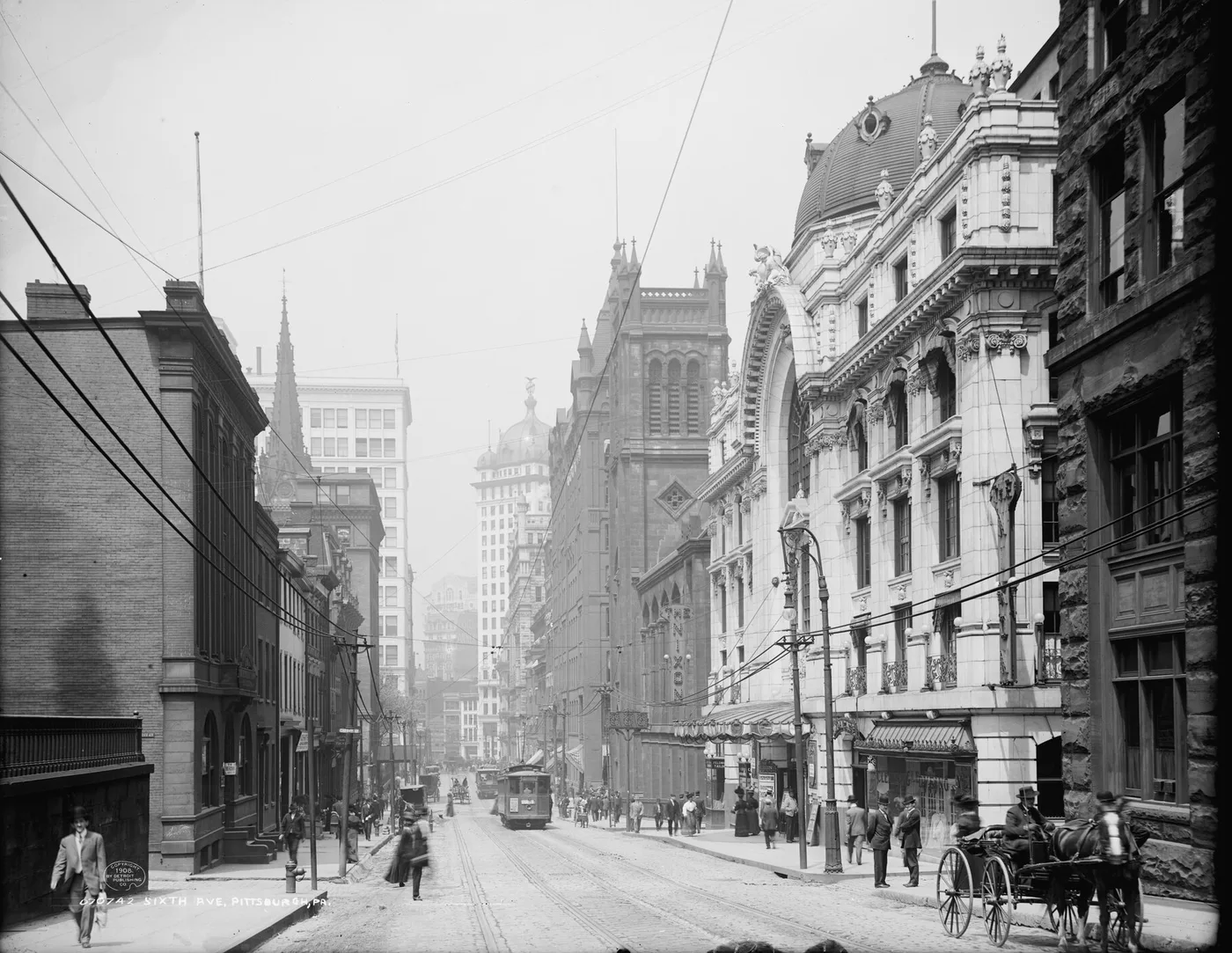
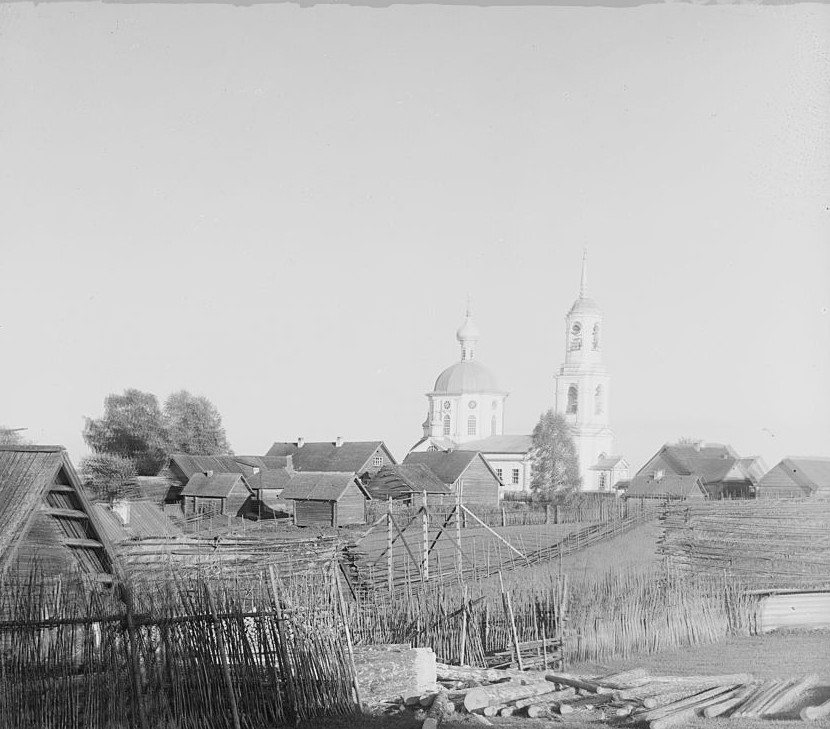
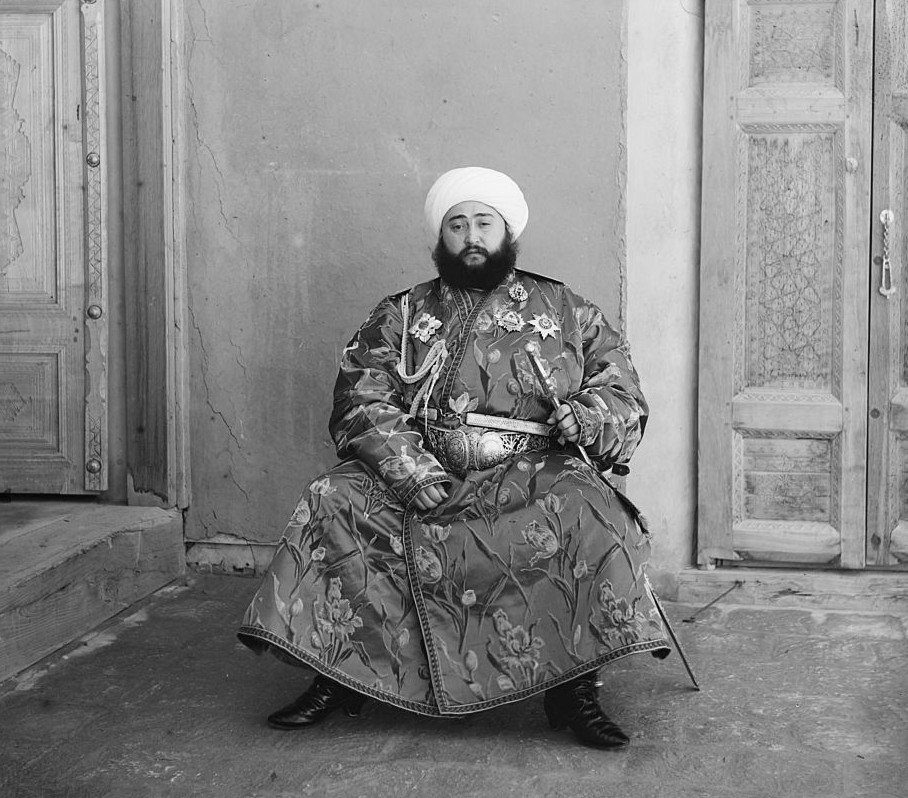
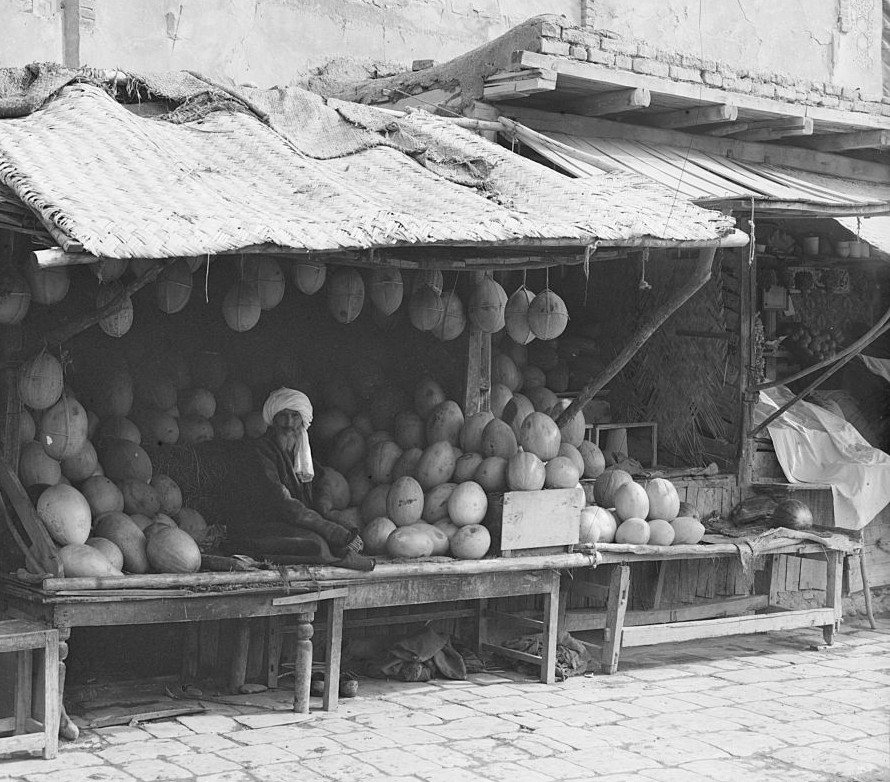
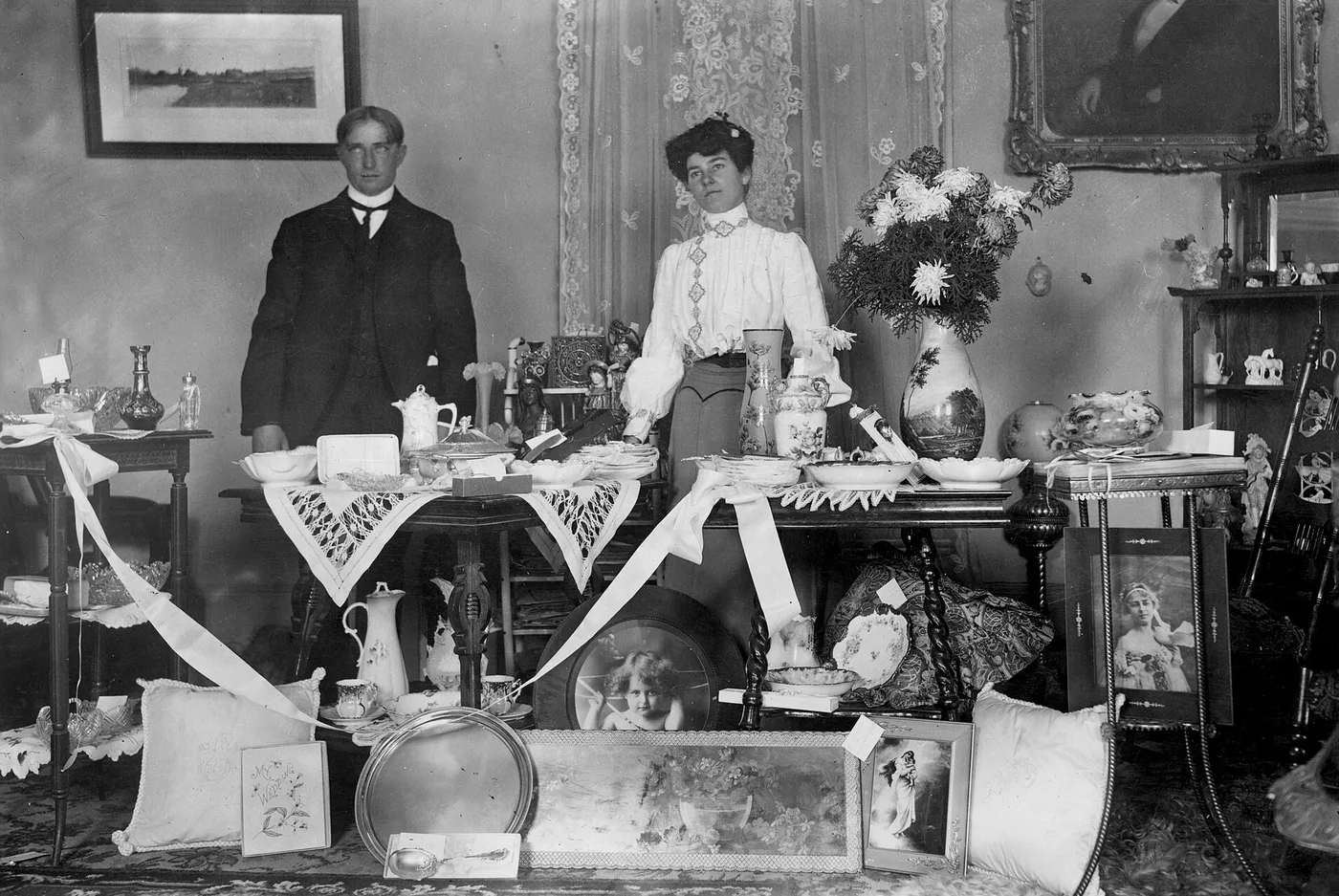
See it on real old photos
Guess the color · Question 1 of 5
What color was this dome in 1910?
The AI had to guess. Now it's your turn.
Add color,
keep the photo.
Every photo is brightness plus color, and yours only has the first part. We keep that brightness exactly as it is, so every edge, wrinkle, shadow and bit of grain stays where it was.
The model then predicts the missing color for each area: skies are usually blue, leaves green, skin warm. A coat, a car or a painted dome gets the most likely color, which may not be the true one.
Last, the two parts are put back together. The strength slider mixes the predicted color with the gray, so changing it is instant and does not run the model again.
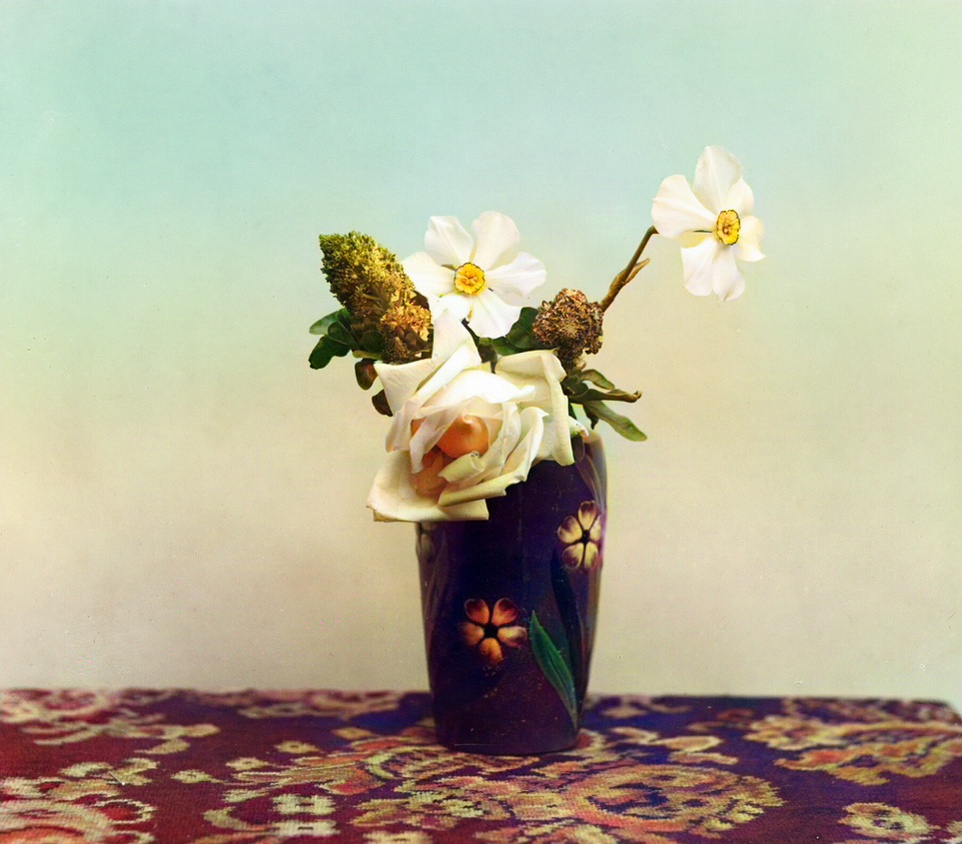
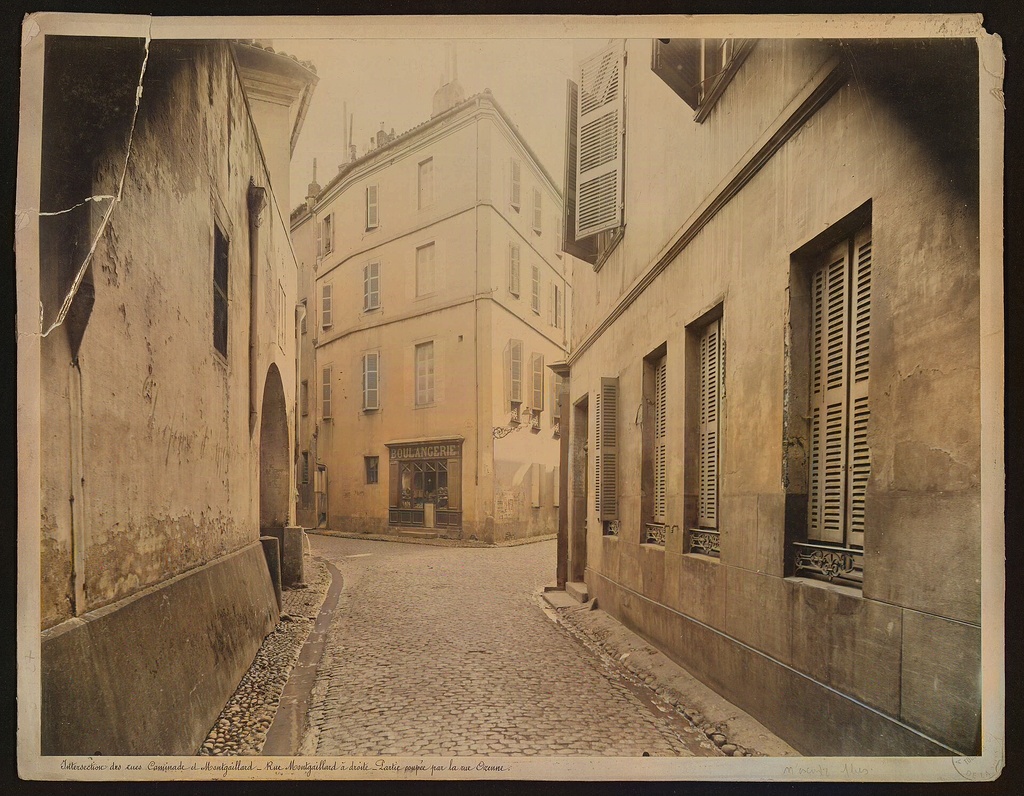
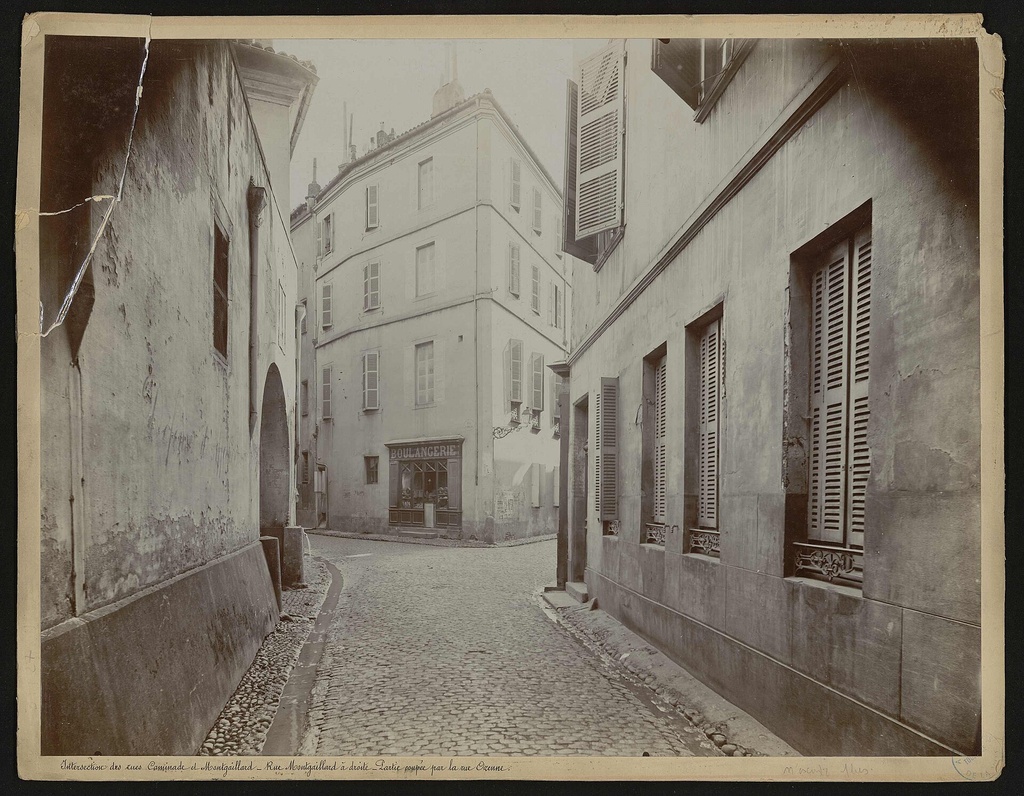
Choose a tone, or tell it a color you remember
Pick one of four tones to set the overall look of the color.
Remember the dress was blue? Type it in and the result leans toward it. It works for a wall, a car or a scarf you know.
Then drag the strength slider, from the original gray to full color.
Faces stay recognisable
Only the color changes, so everyone in a family portrait is still the person you remember.
Very small faces (a few dozen pixels wide) have little to work with and stay close to the original.
When colorizing goes wrong
Heavy scratches and stains get colored like everything else, and scratches can turn pink or purple. Repair the damage first, then colorize the repaired copy.
If the detail is already gone, we’ll say so instead of guessing.
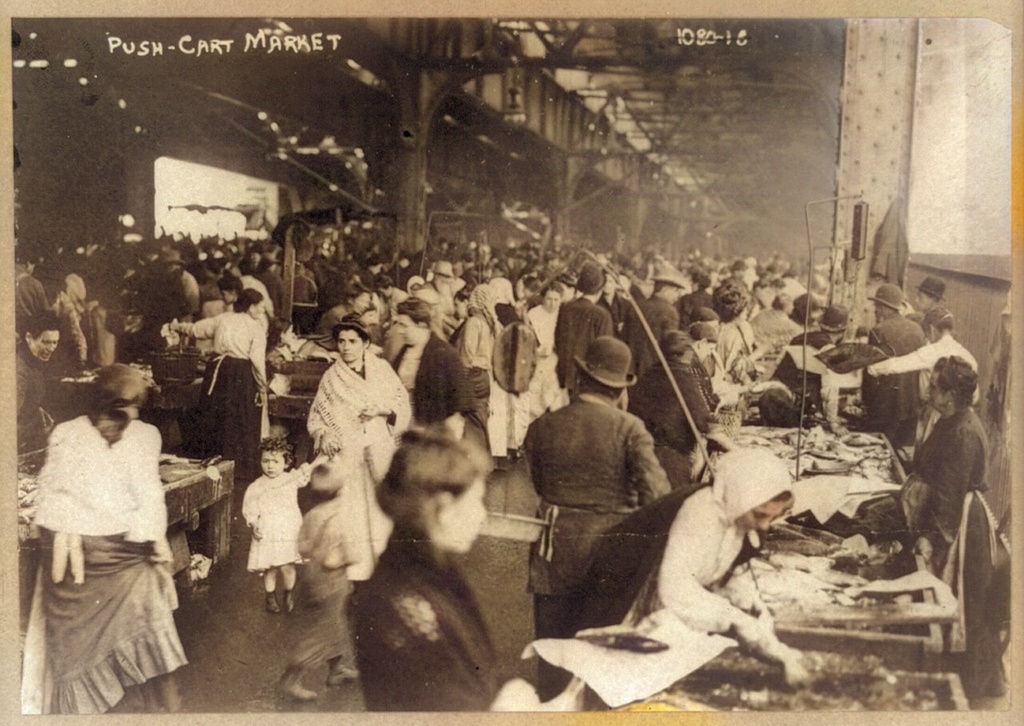
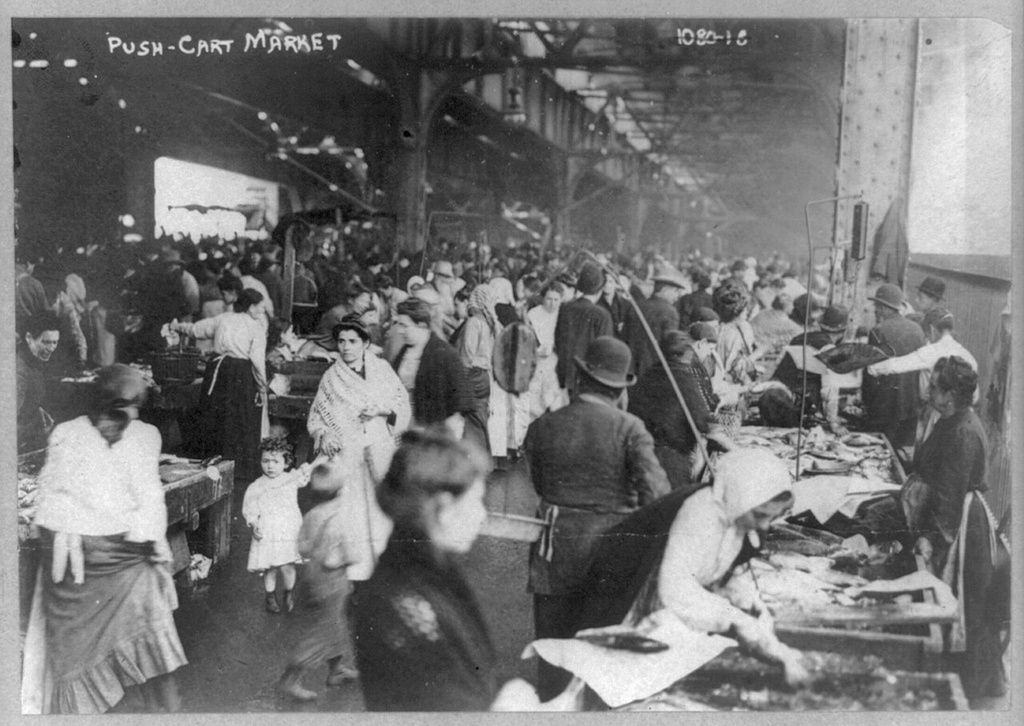
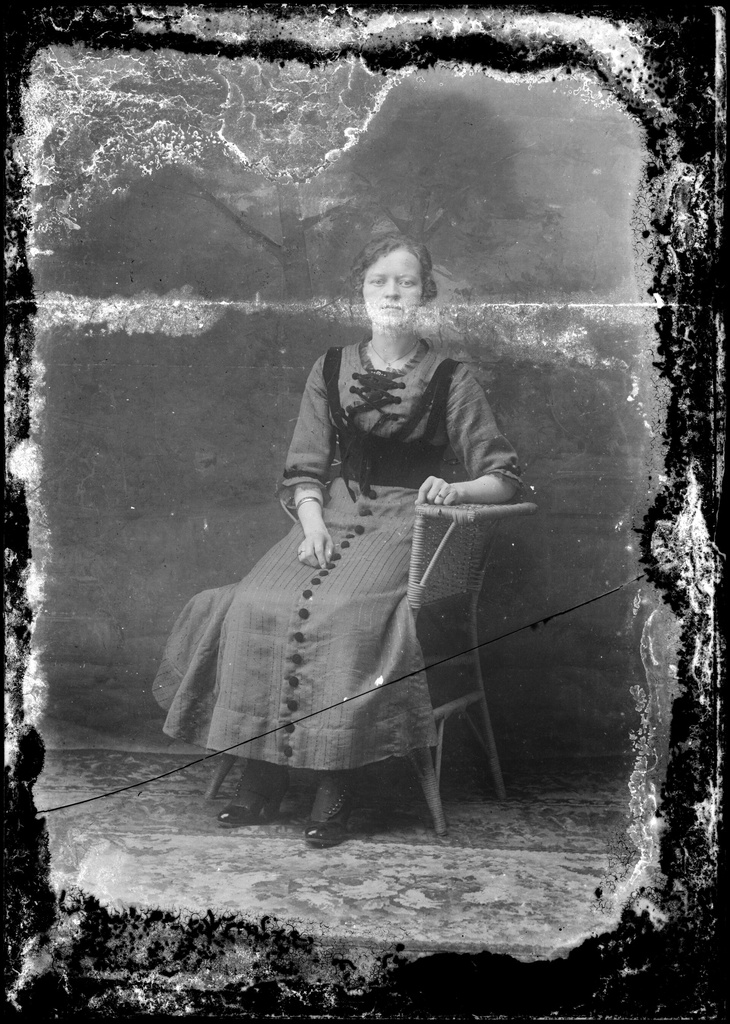
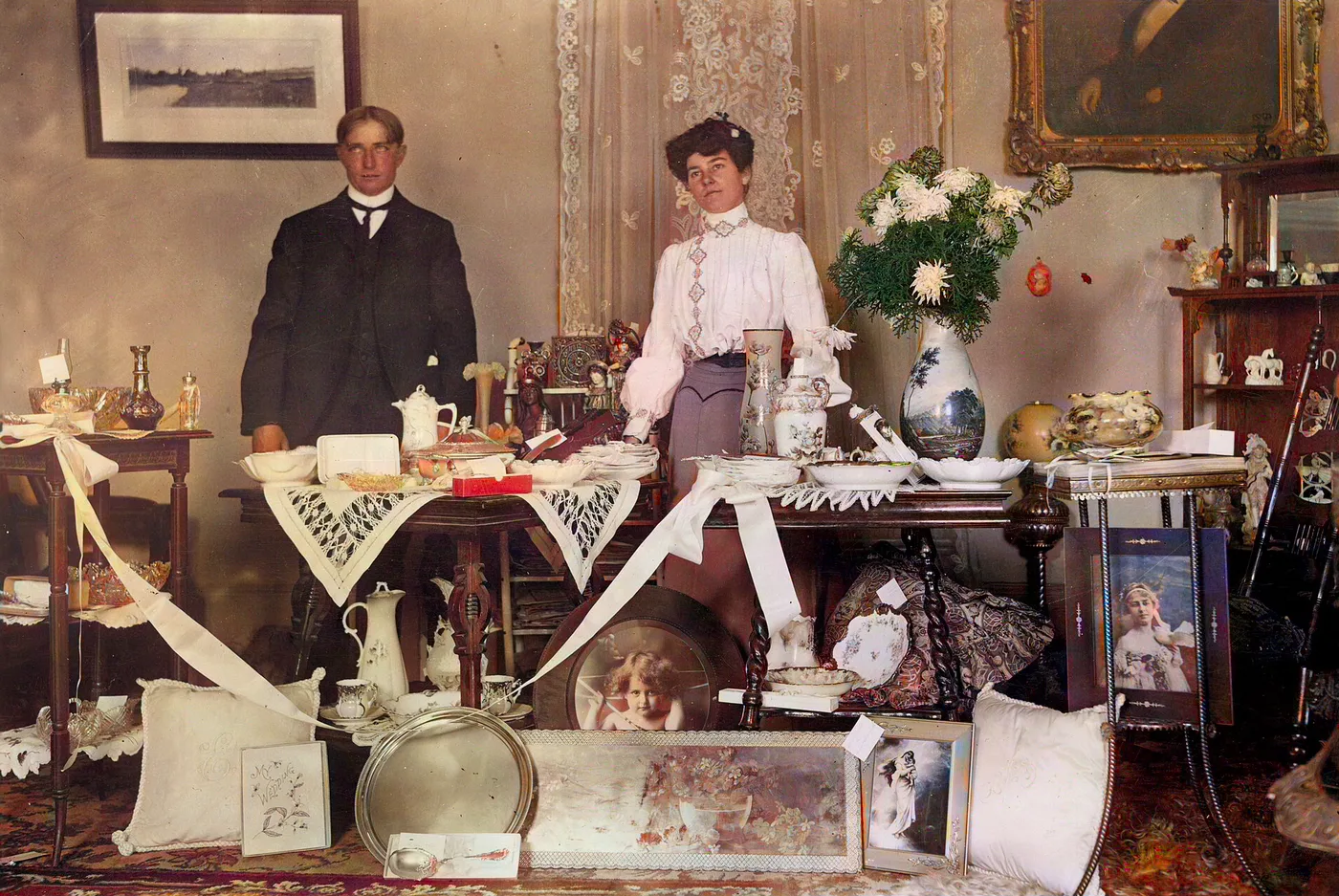
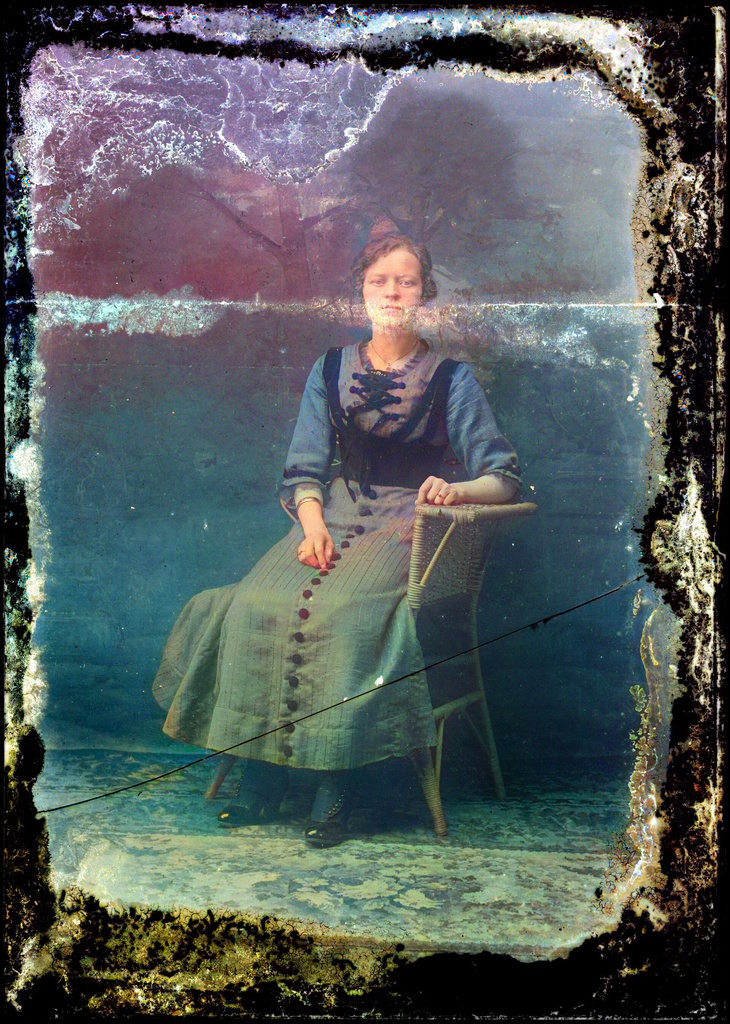
Two more old photos, colorized
Before you scan an old print
Scan at 600 dpi (dots per inch) or higher: a 4x6 print then gives you about 2400 x 3600 pixels.
Blow the dust off the print and the scanner glass with an air bulb, then lay the print flat.
Turn off auto-enhance and keep the scan as it is. Colorize needs the original light and dark, not an already boosted copy.
How to colorize a black and white photo
- 01Choose a photoDrop, paste or choose a JPG, PNG or WebP. Scratched or torn? Repair it first.Your photoFormatJPGColorBlack and whiteReadyYes
- 02Pick a tone and compareChoose one of four tones, or type a color you remember. Then drag the line between before and after.
- 03Set the strengthSofter for a period look, or full color.
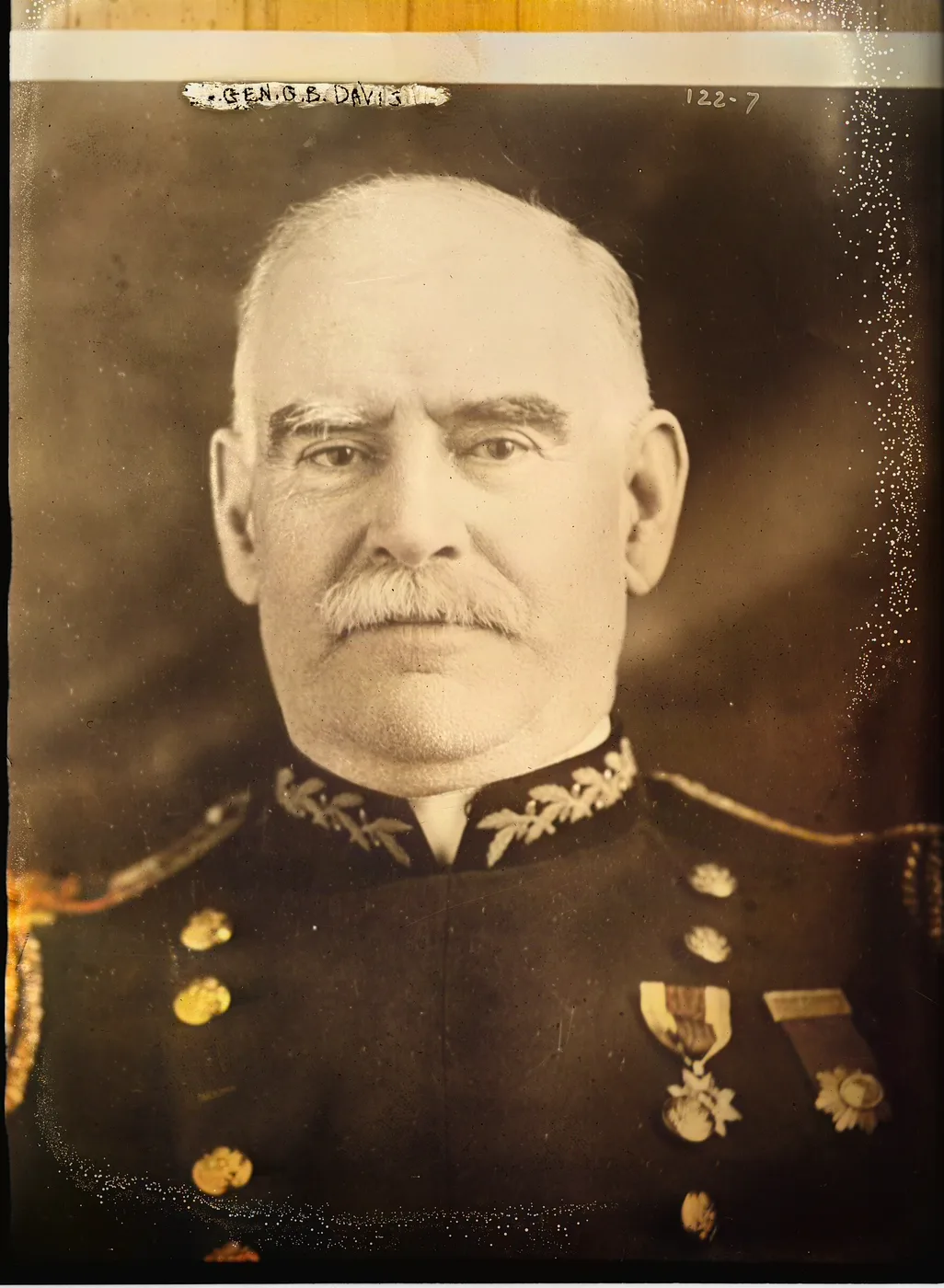
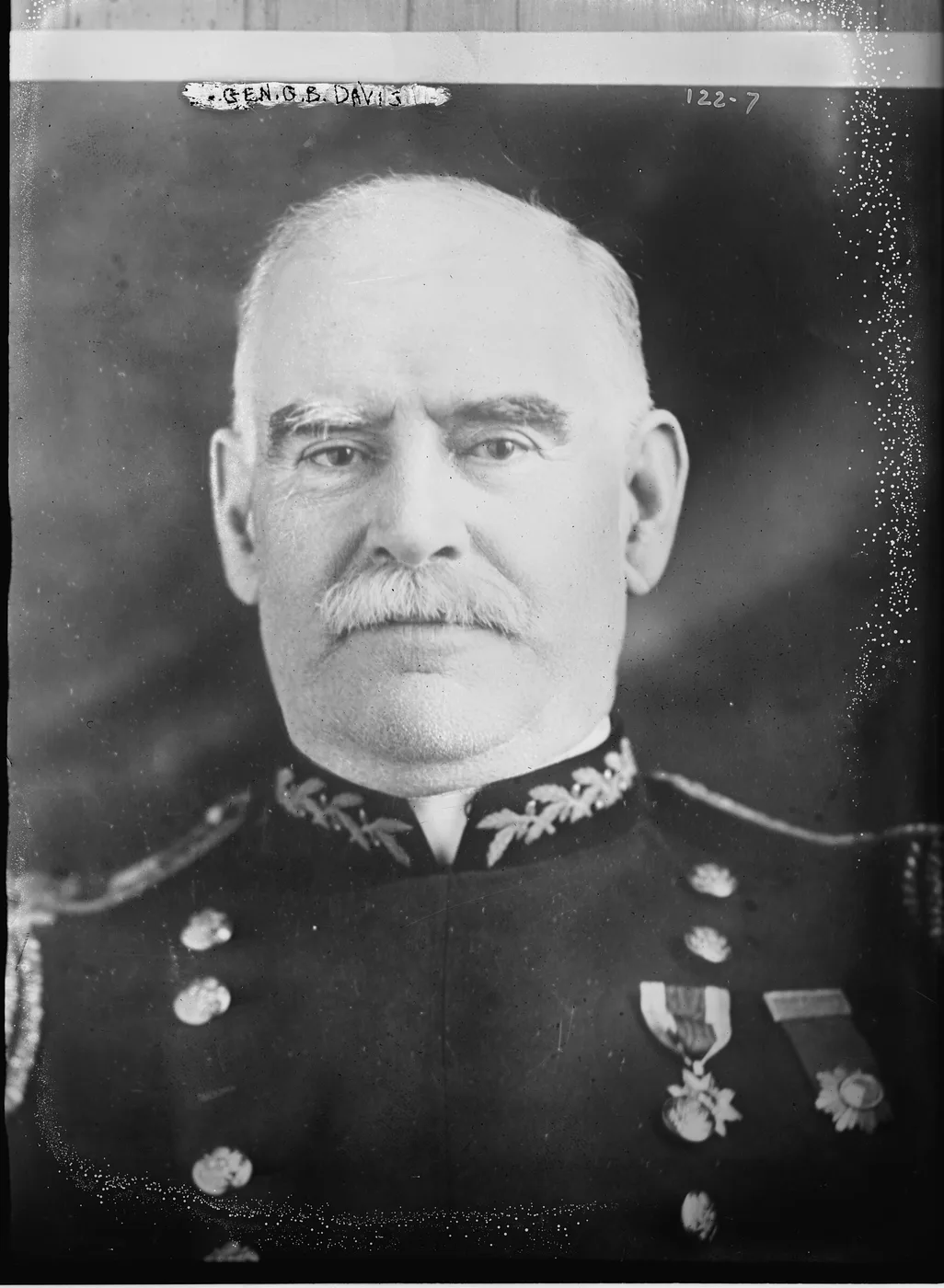 GrayFull color
- 04DownloadSave the result, or go back and try another tone.DownloadResultReadyToneYour pick
Colorize old photos
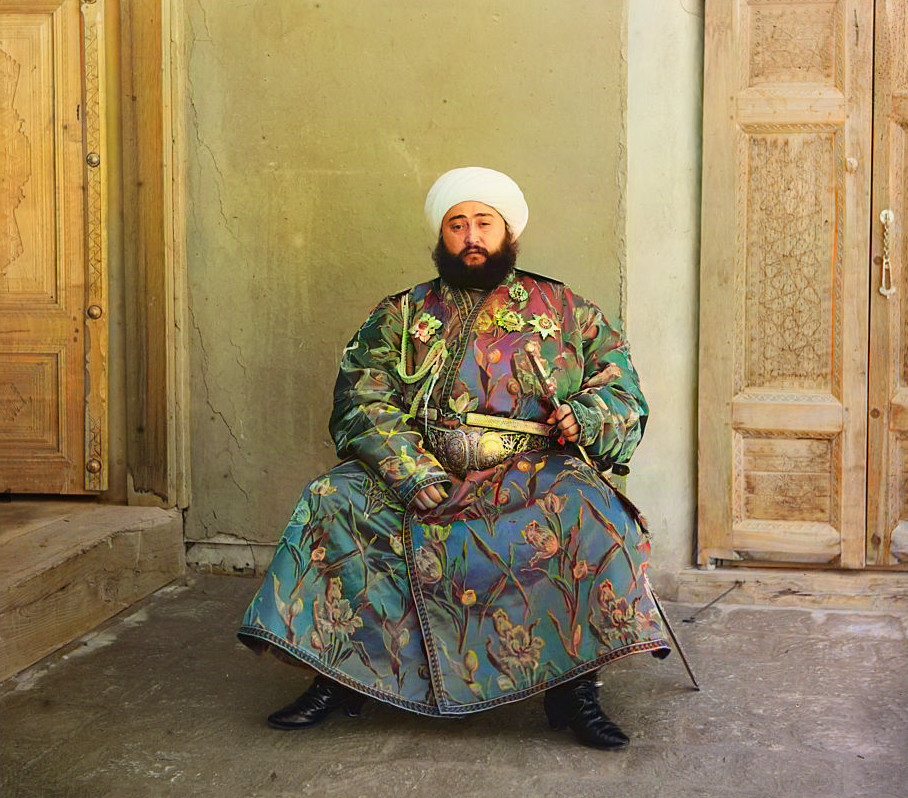
Meet them in color
A grandparent’s wedding photo, a parent as a child, the last picture of someone you miss. In color, for an anniversary or a slideshow, family who never saw them that way can see the blue of a dress.
Put faces on the family tree
Relatives spot the same face across albums faster in color, and a colorized copy makes a profile picture people stop on. The colors are a guess, so keep the original beside it.
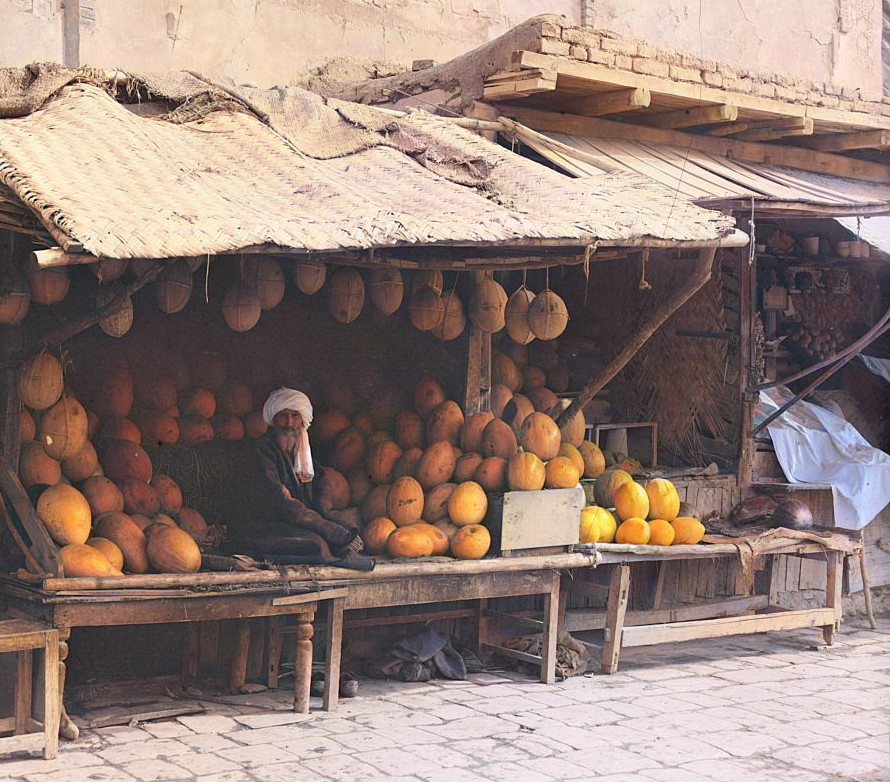
Make the past feel close
A colorized street or market from 1905 works as B-roll or a thumbnail. Start with public-domain photos, such as the Library of Congress collections, and say the color was added.
Shot on black and white film
Colorize one frame from a roll of HP5 or Tri-X, or make gray and color versions of the same shot for a wipe. Use the strength slider to land between the two.
Which tool fits your photo?
| Your photo | Use | Why |
|---|---|---|
| Motion blur or missed focus | Unblur | Smeared detail needs a model. |
| A little soft | Sharpen | Edges still exist. Free, local. |
| Blocky, pixelated or tiny | Unpixelate | Enlarges and smooths blocks. |
| Black and white | Colorize | Adds color, keeps the grain. |
| Blurry and black and white | Unblur, then Colorize | Order matters: Unblur first. |
No photo handy? Pick one and watch it come back.
Opens in the tool at the top of the page · samples cost nothing
Free to try, plans when you need more
Starter
A box of old photos- 40 credits · up to 40 photos a month
- $0.20 a photo on yearly billing
- Full-size downloads
- Face-safe HD mode: sharper faces that still look like them
Pro
The whole family album- 200 credits · up to 200 photos a month
- $0.10 a photo on yearly billing
- Everything in Starter
- Batch up to 20 at once
- Print sizes up to A3
Archive
For genealogy and big archives- 500 credits · up to 500 photos a month
- $0.05 a photo on yearly billing
- Everything in Pro
- Batch up to 100
- Priority queue
Pay as you go
10 credits · up to 10 photos
$4.99$0.50 a photo
Try a few photos
150 credits · up to 150 photos
$38.00$0.25 a photo
Restore a family album
500 credits · up to 500 photos
$79.00$0.16 a photo
A large collection
1,300 credits · up to 1,300 photos
$199.00$0.15 a photo
An extensive archive
1 credit = 1 Standard photo · HD uses 3 · Restore uses 2
Prices in USD. Sales tax or VAT, where it applies, is added at checkout.
Questions
Questions
No app is needed. Revivo Photo, an AI photo restoration tool, colorizes from your browser on a phone or computer. Only the color changes, so light, shadow and grain stay; you pick one of four tones or type a color you remember, then compare before and after before you download. The colors are still a guess.
It predicts them from what it has learned. The model has seen many color photos of skin, sky, grass and brick in different light, and from each area’s gray value it picks the most likely color. That is an informed guess, which is why a dress or a car can come out a different color than it really was.
Yes. Choose one of four tones, or type a color you remember, such as a blue dress or a green door, then set how strong the color is. Your choice steers the result, but it is still a guess and may not land exactly.
Yes. Lower the strength for a softer, period look, or raise it for full color. Light, shadow and grain are kept, so a low setting looks like a hand-tinted print rather than a modern snapshot. Choose one of four tones to set the base color, then compare with the slider.
Choose a photo on this page and run it: you get 1 free photo a day without an account and 3 free credits when you sign up. Plans are listed just above.
No. The colors are a plausible guess, not a record of the real ones. Skin, sky and grass usually look right; a dress, a car or a painted door may have been another color, as the 1910 monastery dome above shows. If you remember the real color, type it in and the result is steered toward it.
Yes, but a general image tool may redraw the whole picture, which can change faces and texture. Here only the color changes: your original light, dark and grain stay, and faces keep their shape. The colors are still a guess.
It aims to keep the person themselves, because only the color changes, but we cannot promise that for every photo. Faces are checked first and you can compare with the original using the slider. Very small faces (a few dozen pixels wide) have little to work with and stay close to the original.
Yes. The old tint is replaced with new color, and the light and dark of your scan stay. Pick one of four tones and lower the color strength to keep some of the faded look. Very faded areas are harder, and the color there can look uneven.
You can, but repair the damage first. Scratches and stains pick up color too, and scratches can turn pink or purple, so colorize the repaired copy. If a photo is too blurred, we tell you some detail cannot come back.